
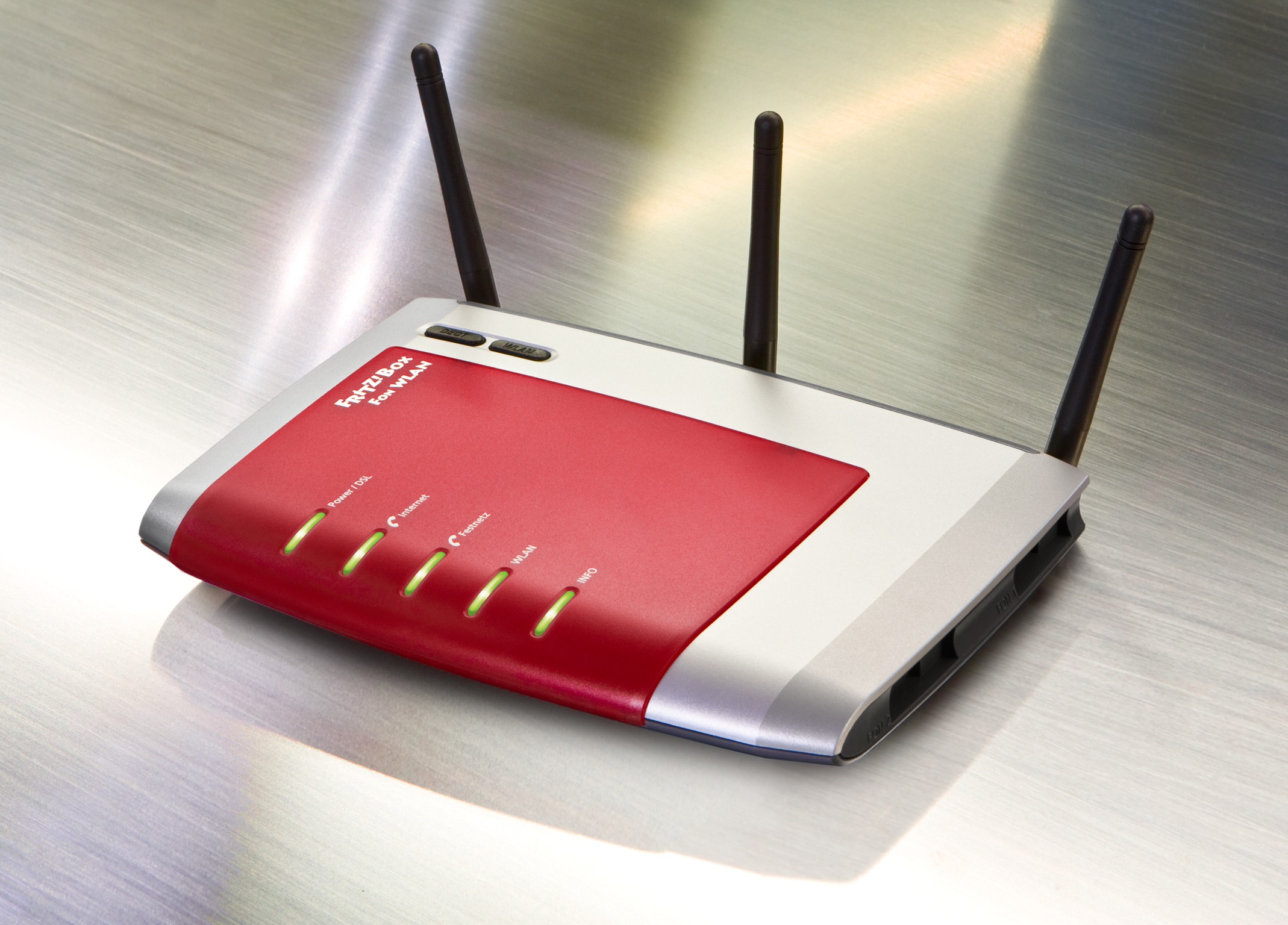
This HowTo explains how to connect a WRT54GL V1.1 to a FritzBox 7270 as a repeater. In this setup, the WRT54 receives the FritzBox Wi-Fi signal and rebroadcasts it using the same SSID. Computers connected to the WRT54 by LAN cable are on the same network as the Wi-Fi devices. The connection uses WPA encryption. In principle, this configuration therefore provides much the same functionality as a dedicated Wi-Fi repeater.
Hardware and Firmware Used
FritzBox 7270 firmware version 74.04.88
WRT54GL V1.1 firmware: DD-WRT v24-sp2 (build 14896)
Configuring the FritzBox
Basically, I use the FritzBox standard configuration:
IP address: 192.168.178.1
Subnet mask: 255.255.255.0
DHCP server: enabled
The DHCP server assigns IP addresses from 192.168.178.20 to 192.168.178.200
These values can of course vary. The following WRT54 configuration, however, is based on this setup.
Naturally, Wi-Fi must be enabled on the FritzBox. You should set the wireless channel manually. This can be done in the FritzBox interface under “Wi-Fi” → “Radio Channel”. Ideally, use channel 1, 6 or 11.
The Wi-Fi network name should be set to visible, at least while setting everything up. Once the repeater has been configured, you can hide it again. Under “Security”, enter the following settings:
Security: WPA encryption
WPA mode: WPA + WPA2
Wi-Fi network key: a secure key
Configuring the WRT54
If you have not already done so, the special DD-WRT firmware must be installed on the router. The firmware and further information are available at www.dd-wrt.com. In any case, start by performing a router reset. Then connect via LAN cable with DHCP enabled and open the router web interface. It can normally be reached at the router’s default IP address.
After setting a username and password in the router web interface, it is best to go first to the “Status” page and then to the “Wireless” section. Under the wireless nodes section, start the site survey.
A new window now opens showing all available Wi-Fi networks. The FritzBox network should appear here. If it does not, you are either outside the FritzBox wireless range or something is wrong with the FritzBox configuration.
In the list of available networks, click “Join” on the right. Then switch to the main “Wireless” menu and edit the physical wl0 interface under “Basic Settings” as follows:
Wireless mode: Repeater Bridge
Wireless network mode: G-Only
Wireless network name (SSID): the name of the network joined above should already be shown here; otherwise enter the FritzBox Wi-Fi network name.
Sensitivity range (ACK Timing): 0
Network configuration: Bridged
Then save, but do not apply the settings yet. Still under “Basic Settings”, edit the virtual wl0.1 interface as follows:
Wireless network name (SSID): the FritzBox Wi-Fi network name, i.e. the same as above. While setting up the repeater, you can temporarily use a different name to verify that the WRT54 is working.
Wireless SSID broadcast: initially leave this enabled and disable it only after the configuration works and you want to hide the network.
AP Isolation: disabled
Network configuration: Bridged
Now “Apply” these changes. Then switch to “Wireless Security” and configure the physical wl0 interface as follows:
Security mode: WPA2 Personal
WPA algorithm: TKIP+AES
WPA Shared Key: use the same key as the FritzBox “Wi-Fi network key”.
Key Renewal Interval (seconds): 3600
Before the next step, be sure to save. Then enter the same settings again for the virtual wl0.1 interface as for the physical interface. Apply the settings, switch to the main “Security” menu, clear all checkboxes under additional filters and WAN blocking, and then disable the firewall completely. Apply these changes as well.
If you now return to “Status”, the FritzBox should already be visible by its MAC address under the wireless nodes section. Finally, go to the main “Setup” menu once more. Under “Networking”, add an additional DHCP server on eth0 under “DHCPD” and save the setting.
Now return once more to “Basic Setup” and configure the router IPs under “Network Setup”.
Local IP address: a free IP address on the FritzBox network that is not assigned by the DHCP server. I used 192.168.178.2.
Subnet mask: the same as on the FritzBox; in my case 255.255.255.0
Gateway: enter the FritzBox IP address, in this case 192.168.178.1
Local DNS: 0.0.0.0
After applying these settings, the configuration is complete. You will probably need to renew the IP address on the PC used to configure the WRT54, or adjust any manually assigned address. The WRT54 should now receive and rebroadcast the FritzBox Wi-Fi network. If the same SSID has been used everywhere as described here, a laptop should automatically switch between the FritzBox and WRT54 networks.
What apparently does not work is switching between the FritzBox and repeater networks while, for example, making a Skype call or streaming a radio station on an iPhone. Unfortunately, the iPhone app I used usually even crashes during the switch. The repeater web interface can be reached via its IP address, in this case 192.168.178.2.






vielen Dank für die detaillierte und vor allem erfolggekrönte Anleitung!
Vielen vielen Dank für diese wirklich simple Anleitung mit ihr kann ich jetzt endlich meine networkgeräte ohne lästige verkabelungen nutzen…
ich wusste ich kann diesen Router doch noch verwenden
Gruß
freut mich, dass ich helfen konnte und dass der Router damit auf seine alten Tage noch eine sinnvolle Aufgaben hat. VG, Michael.
Vielen Dank.
Hatte den Versuch meinen alten WRT54 als Repeater zu benutzen schon fast aufgegeben.
Dank deiner Anleitung habe ich die neue Firmware aufgespielt und einrichten können. Was ich ohne deiner Hilfe nicht geschafft hätte, zuviel der Möglichkeiten in der neuen Firmware 😉
Jetzt läuft alles prima.
Basisrouter war übrigens eine Fritzbox 7390
Gruß
Hallo Harald,
danke für Dein Feedback, dass dieses HowTo auch mit der AVM FritzBox 7390 funktioniert.
Sonnige Grüße aus der Nähe von Porto Cristo!
Michael
Danke für das tolle Tutorial. Hatte nur einen kleinen Fehler in meiner Konfiguration und schon funktioniert nichts mehr. Klasse wenn sich jemand die Mühe für so einen Guide macht!
freut mich wenn ich helfen konnte!
Hallo Michael,
nachdem ich schon stundenlang versucht hatte die DD-WRT Konfiguration mit meiner FritzBox in Einklang zu bringen, bin ich zufällig auf deine Seite gestoßen und es war innerhalb von Minuten erfolgreich erledigt… Vielen Dank dafür!
Liebe Grüße
Hallo,
danke für die ausführliche Anleitung. Ich habe auch gleiche WRT54GL V1.1-Router, aber die Firmware DD-WRT v24-sp2 (build 14896) auf der Hompage-Seite http://www.dd-wrt.com nicht gefunden. Kann mir jemand das per Mail senden.
Viele Grüße
Ronizan
du findest die Firmware auf der dd-wrt Website unter “Router Database” wenn du nach “WRT54G” suchst.
Hier auch noch mal ein Link:
http://www.dd-wrt.com/routerdb/de/download/Linksys/WRT54G/v1.1/dd-wrt.v24_std_generic.bin/3751
Könnte aber auch mit anderen Builds funktionieren …
VG
Michael
Hallo Michael!
Danke für deine Anleitung sowas habe ich schon lange gesucht!
Allerdings habe ich leider ein Problem. nachdem ich die Einstellungen für die virtuelle Schnittstelle getätigt und auf Anwenden geklickt habe kann ich den Router (der jetzt ein Repeater ist) nicht mehr über http://192.168.1.1/ erreichen.
Was habe ich falsch gemacht?
Ich versuche das ganze niocht mit einer Fritzbox, sondern mit einem A1 Wlan Router (Österreich), aber ich denke daran kanns nicht lieen.
Danke für die Hilfe 🙂
Hallo Lukas,
Wenn Du mein Howto genau befolgt hast, dann solltest Du dem WRT54 am Schluss eine neue IP-Adresse gegeben haben.
Daher ist der Router ab diesem Moment auch unter dieser neuen IP zu erreichen.
Falls das auch nicht funktioniert, kann es durch aus sein, dass dies am anderen Router statt der FritzBox liegt.
Ansonsten ist es für mich aus der Ferne natürlich so gut wie unmöglich eine Fehler Diagnose zu machen…
VG, Michael
Danke für die schnelle Rückmeldung.
Du schreibst nach den Einstellungen der virtuellen Schnittstelle:
“Nun diese Änderungen “Anwenden”. Im Anschluss wechselt man in den Unterbereich “WLAN-Sicherheit” und konfiguriert die physische Schnittstelle wl0 folgendermaßen:”
Aber sobald ich auf Anwenden geklickt habe kann ich mich nicht mehr direkt über kabel mit dem repeater verbinden und komm auch übers drahtlosnetz nicht wieder zur adminseite.
Ich schätze dass ich mich nicht über kabel verbinden kann weils eben ab dem zeitpunkt kein router mehr ist sondern ein repeater.
Leider kenn ich mich zu wenig aus. vielleicht kann mir ja irgend wann wer helfen.
Danke Lg Lukas
Wie gesagt, aus der Ferne kann ich Dir unmöglich sagen wo genau das Problem liegt.
Du könntest, statt dem “Anwenden” auch mal nur “speichern” probieren.
Da bei dieser Konfiguration auch die LAN-Schnittstellen aktiv bleiben glaube ich nicht, dass das das Problem ist.
Was hat denn Dein Rechner für eine IP-Adresse nach dem Du nicht mehr auf den Router zugreifen kannst?
Hallo Michael,
vielen Dank für diese leicht-verständliche Anleitung.
Hat zunächst auch super funktioniert.
Nun hat die Fritzbox das WLAN nachts abgeschaltet.
Dummerweise kommt die Verbindung zum Repeater nicht mehr zustande, auch nicht nach Neustart desselben. Mit dem PC kommt man auch nicht mehr drauf, auch nicht mit Kabel.
Ich benutze Suse Linux in der aktuellen Version, habe auch versucht hier unter Netzwerkverwaltung eine neue Verbindung eingetragen, das Webinterface ist nicht zu erreichen. Ich wollte ein Reset mit Neukonfiguration gerne vermeiden, hast Du noch eine Idee?
Gruß Peter
Hallo Peter,
ich würde einen Reset vorschlagen.
In meinem Fall hat die Verbindung zwischen WRT und FB auch nach Neustarts funktioniert.
Ansonsten kannst Du natürlich den WRT per kabel anschließen und mit einem Netzwerkscanner mal überprüfen von welcher Adresse der WRT antwortet. Und falls da eine IP-Adresse rauskommt versuchen mit dieser zu verbinden.
Generell solltest Du natürlich daran denken, dass der WRT nicht mehr unter der Standard-IP zu erreichern ist, sondern unter der neuen IP-Adresse im Netzwerk der FB.
VG
Michael
Danke für Deine schnelle Hilfe,
also IP hatte ich nach Deinem Vorschlag geändert und auch überprüft. Die kann sich ja eigentlich nicht selbstständig ändern.
Netzwerkscanner hab ich nicht an Bord, ich werde wohl dann doch reseten.
Danke und Gruß Peter
Linux hat immer einen Netzwerkdiagnose Tool an Board. Google mal danach.
Allerdings glaube ich, dass grundsätzlich irgendwas mit der Config des WRT nicht mehr stimmt und Du daher um einen Reset nicht rumkommst.
Mit meiner Anleitung sollte das Einrichten ja relativ zügig gehen.
NOCH EIN TIPP: Mach Dir eine Sicherung der Config, nach dem Du den Router neu eingerichtet hast. Dann kannst Du diese später wieder einspielen sobald es noch mal Probleme geben sollet.
VG & Viel Glück
Michael
Hier noch eine frage. ist es denn mit dieser einstellung dann noch möglich seiten zu filtern via URL oder schlagwörtern??? hab das eben mal ausprobiert aber ich kam zu keinem ergebnis. wäre toll gewesen das ich seiten sperren kann für die leute die auf dem Repeater connecten. Leider habe ich noch die alte 7170 die kann das von haus aus leider auch nicht, wäre mir aber sehr am Herzen meinen Kids Pornografische seiten zu sperren und das via Box, weil die Hosts variante haben die leider schon geknackt
Ich selber habe mit der Filterung noch nie gearbeitet. Aber ich bin mir sicher, dass das so nicht funktionieren wird. Insofern sich Filter auf dem WRT aktivieren lassen sollten diese nur für Geräte gelten, die am WRT hängen. Eine Möglichkeit wäre aber einen weiteren Router zwischen die FritzBox und dem Internetanschluss zu hängen, über den der gesamte Internetverkehr läuft und auf dem die Filter aktiviert sind. Man spricht dann von einer Router Kaskade. Mehr infos dazu findest Du bei Google.
Die wlan bridge nach dieser Anleitung funktioniert.
Ich habe zwischen Fritzbox und Linksys ein LAN-Kabel verlegt. Jetzt möchte ich den Linksys 1. als Switch benutzen (für TV, Konsole und HTPC) und 2. damit mein WLAN (optional) erweitern. Bridge über LAN könnte doch die Performance des Netzes verbessern, oder?
Dafür würde ich dann aber eine andere Konfiguration verwenden. Etwa in dem du den wrt54 einfach als zusätzlichen Router einstellst und das WLAN mit der gleichen SSID und dem gleichen Passwort wie auf der fritzbox. Evtl. Aber mit einem anderen WLAN Kanal. Viel Erfolg!
Ich empfehle, als *erstes* den (letzten) Schritt mit der statischen lokalen IP Adresse zu konfigurieren. Das verhindert, dass der Router bei zwischenzeitlichem “Apply Settings” von der Frtiz Box eine arbiträre IP zugewiesen kriegt und dann nicht mehr ansprechbar ist über das Web-Interface.
Das war genau was ich gesucht hatte! Vielen dank für die erstklassige Anweisung! Funktioniert bei mir zwischen zwei wrt54gl mit ddwrt 😉