

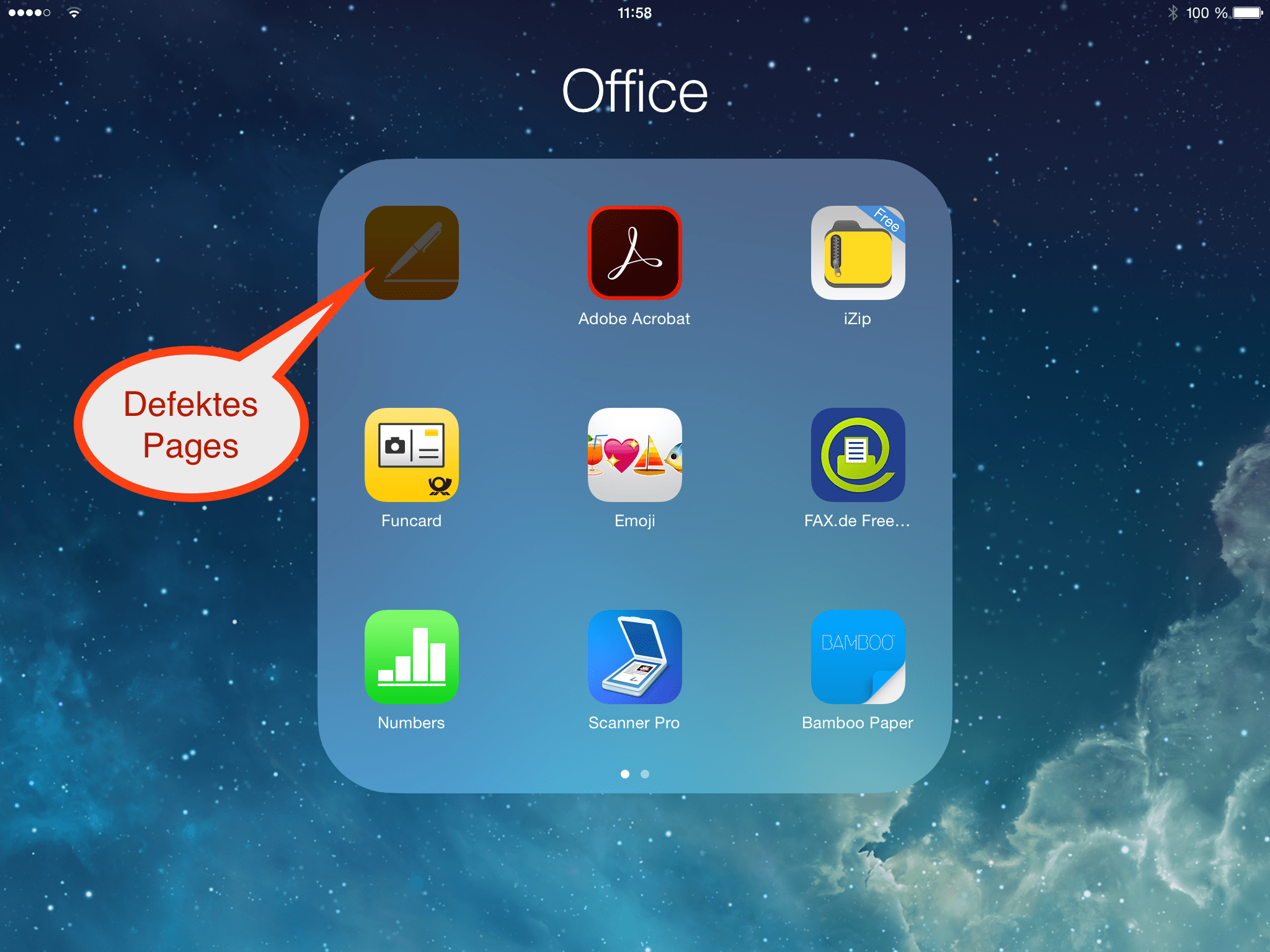
Recently, I have repeatedly seen problems updating Pages, Numbers or Keynote on iPhones and iPads. The update appears to download, but the installation cannot be completed. The icon of the affected app remains grey or indicates that installation is still not fully complete. Uninstalling the app does not work either: usually you are asked whether the app should really be deleted, but the app icon simply remains on the screen. If you cancel the update in the App Store and start it again, the whole process begins from scratch.
The solution is quite simple:
- If necessary, manually stop the update in the App Store.
- Restart the device.
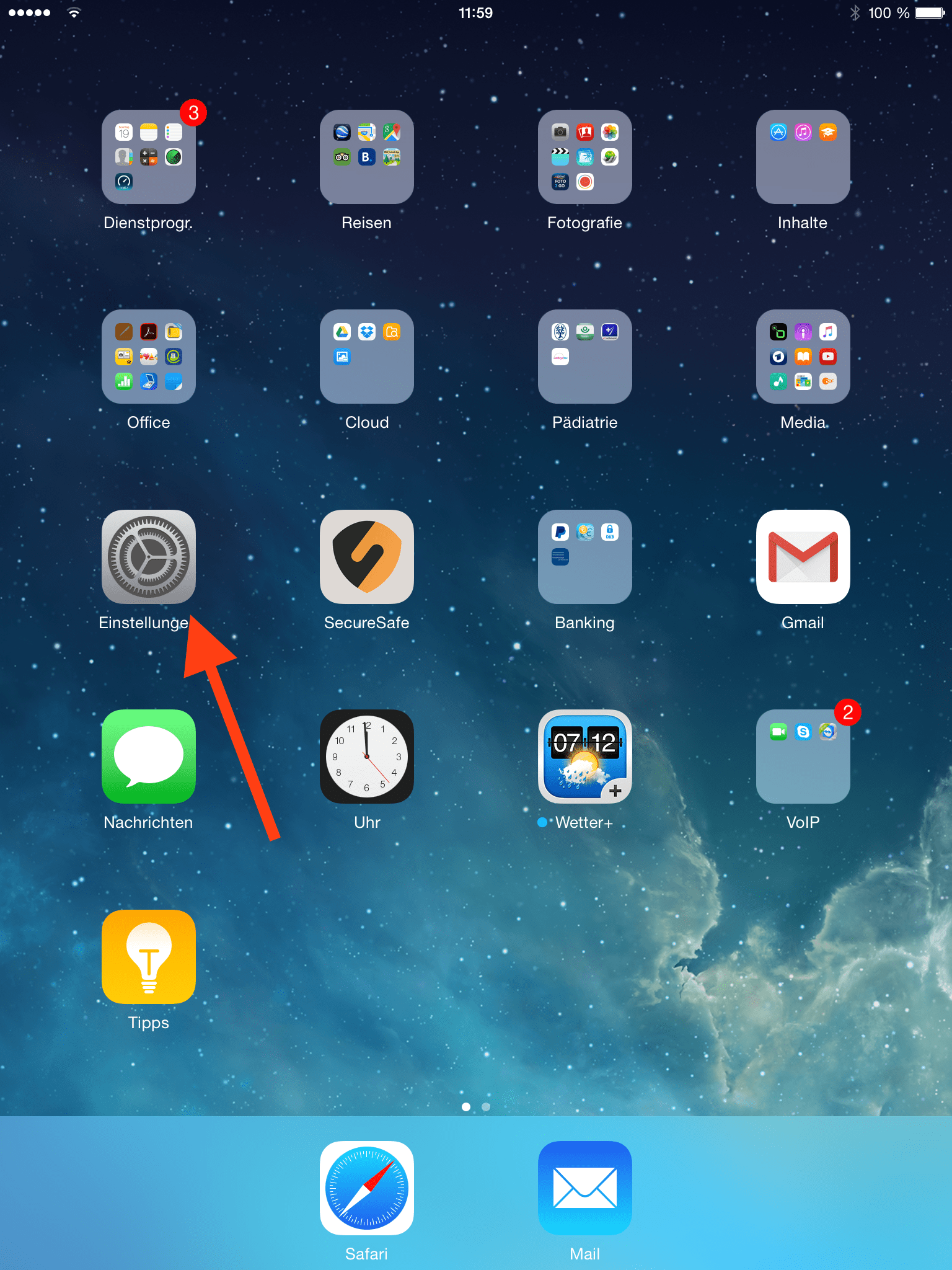
- After restarting, open “Settings”.
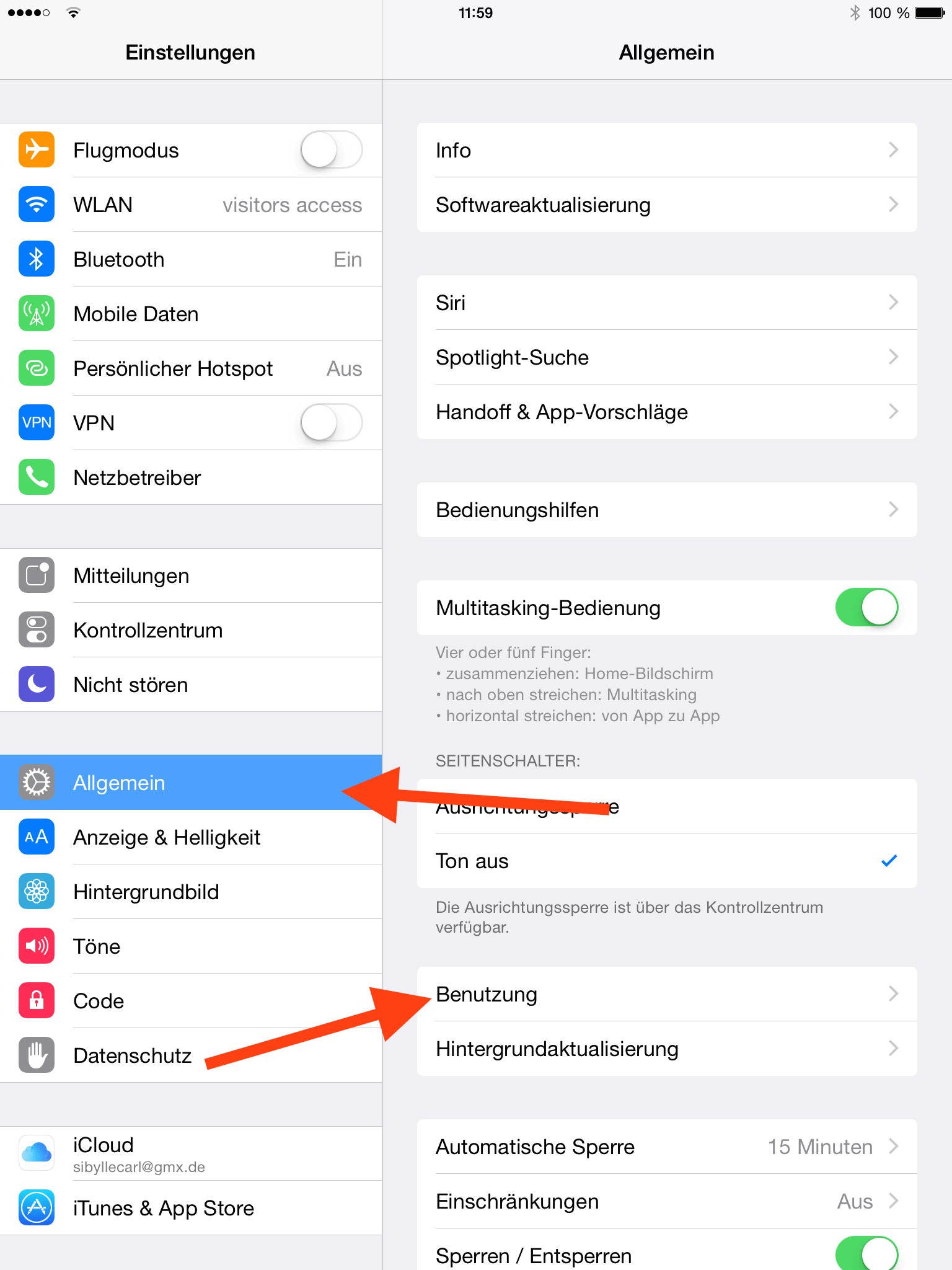
- Go to “General” and “Usage”.
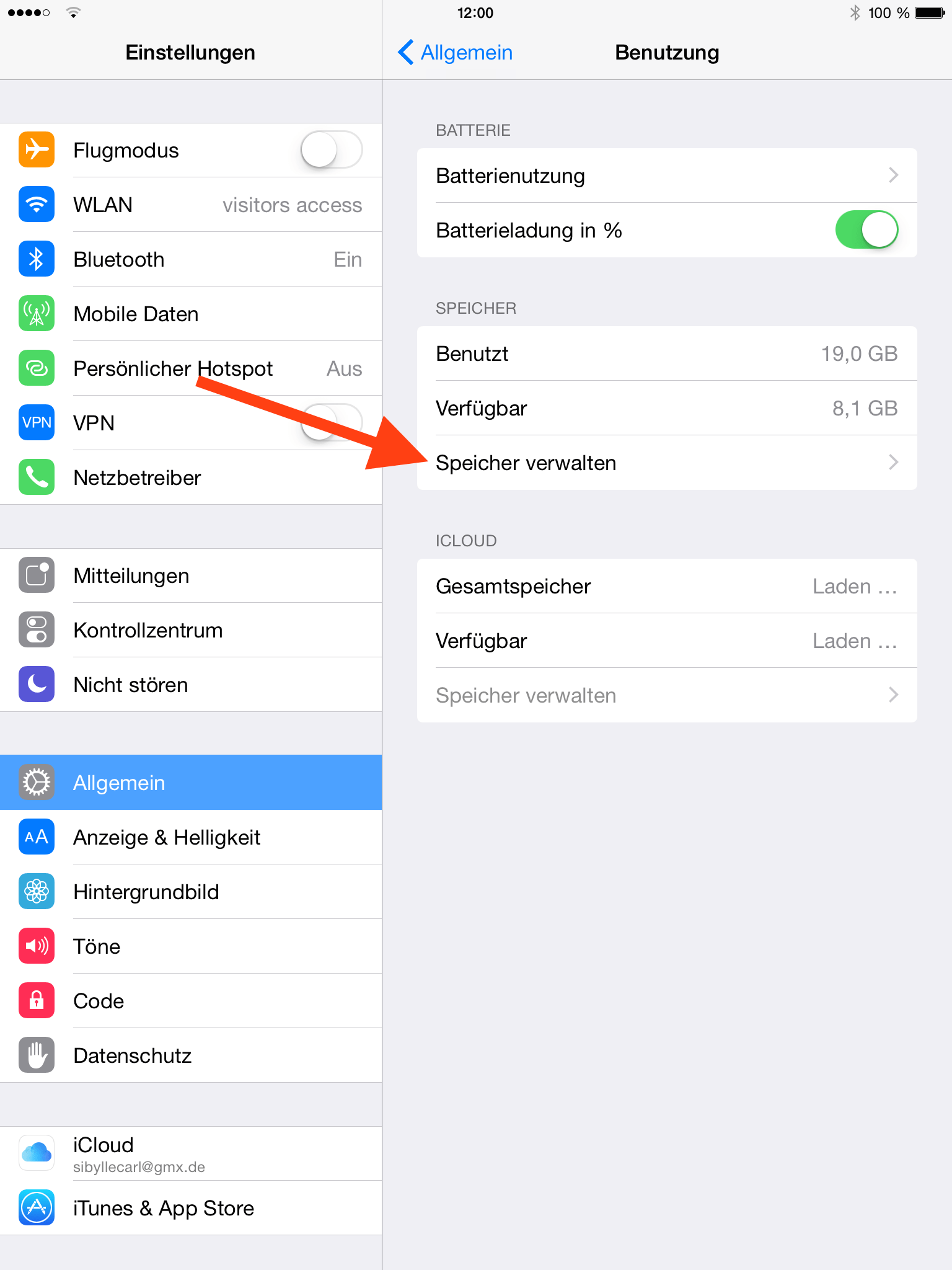
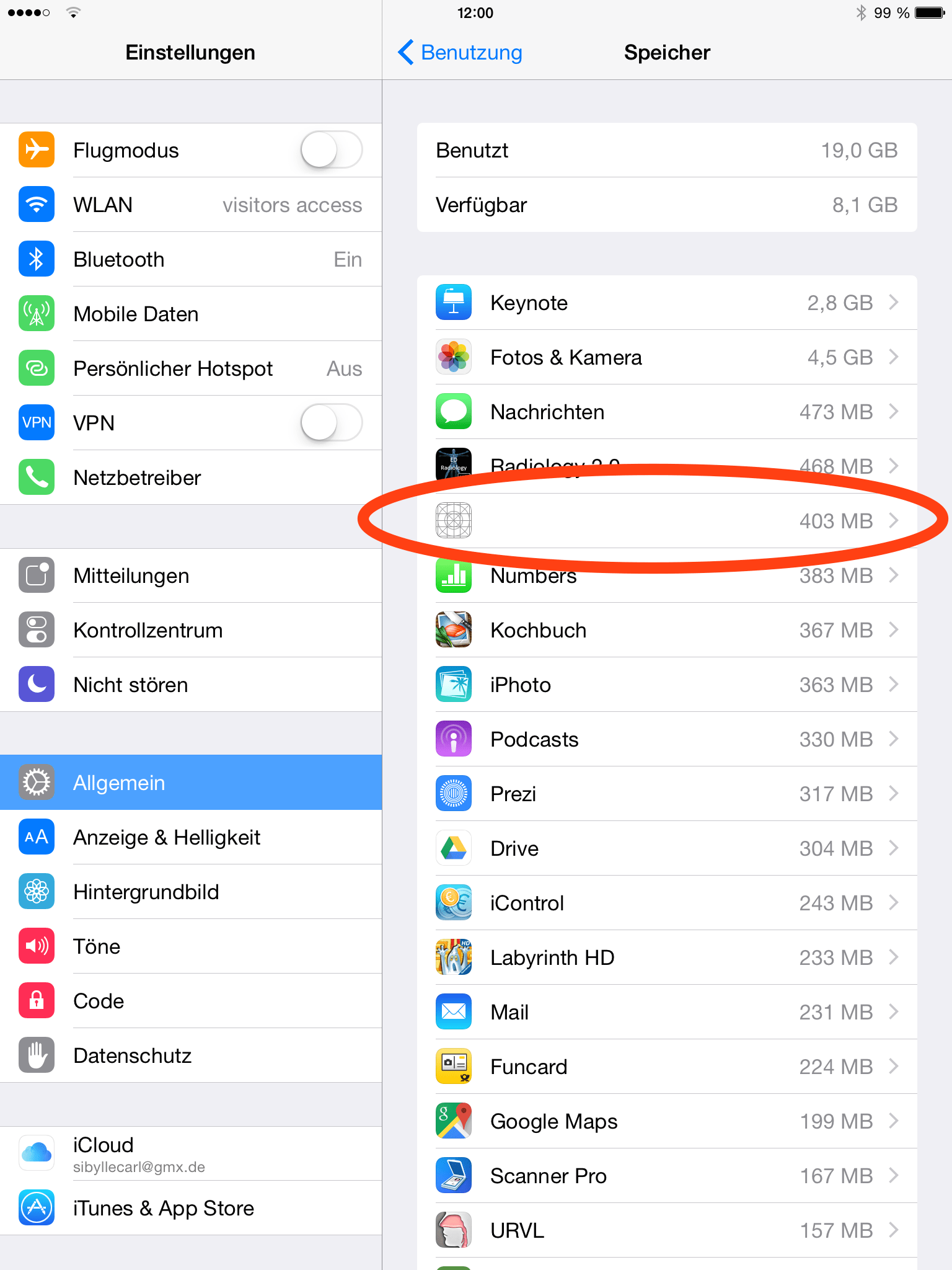
- Then tap “Manage Storage”.
- Select the affected app. However, the app may no longer be listed by name, or its icon may appear as a placeholder. This can also be seen in screenshot 3 in the gallery.
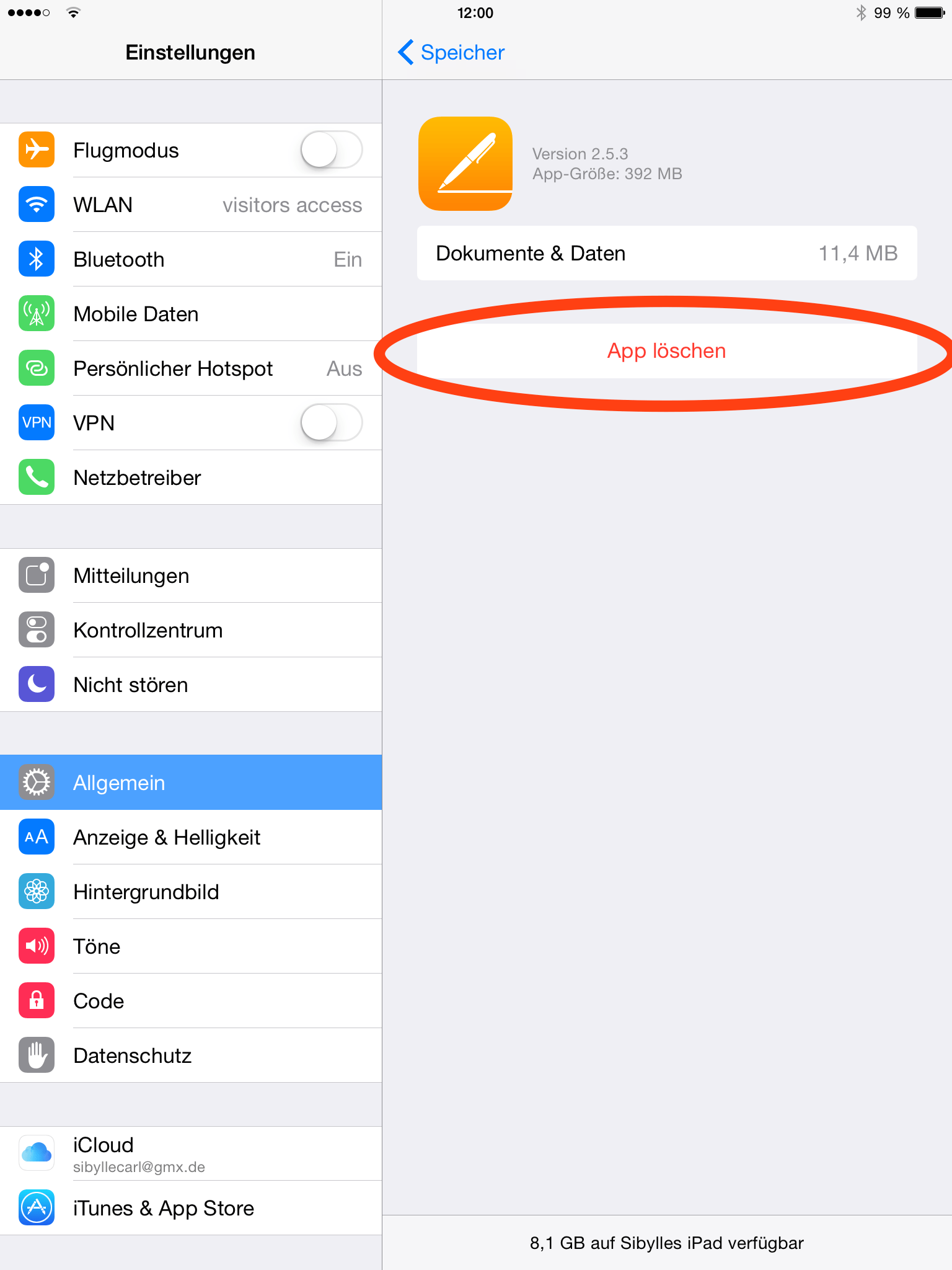
- The correct icon may appear in the following dialogue. Select “Delete App” and, if necessary, confirm again. If you have used iCloud for data storage, you do not need to worry about losing data. However, if documents from the affected app were stored locally on the device, this may result in data loss. In that case, you should first check whether there is a way to back up the local data.
- Once deletion is complete, the affected app should no longer appear on the Home Screen.
- IMPORTANT: Restart the device once again.
- After restarting: go to the App Store and reinstall the app.
Pages, Numbers or Keynote should now install correctly again. If not, repeat the procedure if necessary.
The steps are also briefly explained in the following screenshot gallery:

Did this HowTo help? Do you have any questions or something to add? Feel free to leave a comment below!